Guides / Everyday technology · Buying guide
USB-C Laptop Charging: How to Choose a Charger and Cable
USB-C laptop charging needs more than a plug that fits. Check whether the laptop’s port accepts charging, whether the adapter offers compatible USB Power Delivery output, and whether the cable supports the power you need. Those checks explain many slow-charge warnings before you buy another adapter.
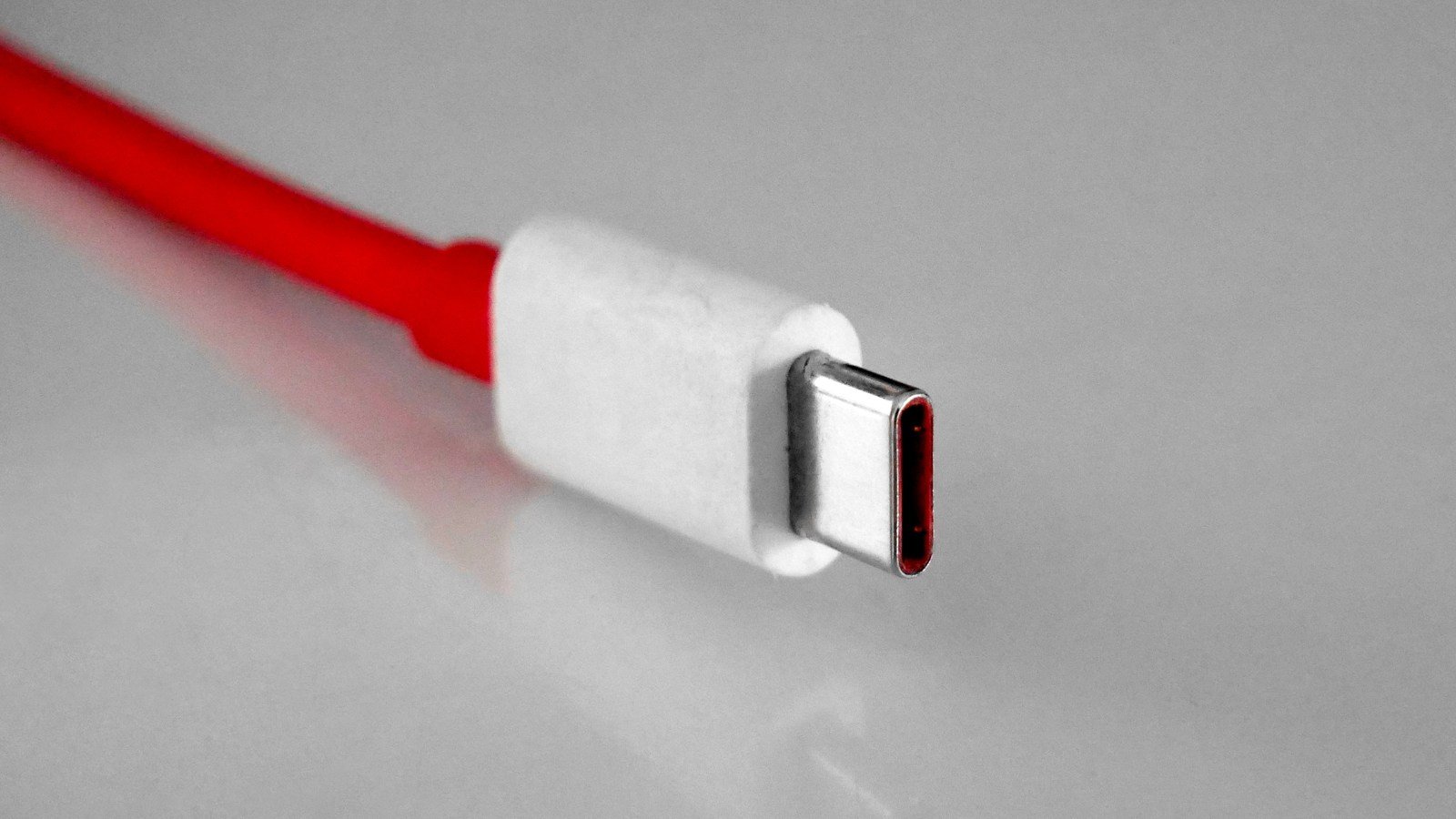
The connector is a useful common shape, but it does not by itself identify charging speed, data speed or display support. USB-IF’s product language guidelines treat USB-C, USB data standards and USB Power Delivery as different capabilities. Read the specification for the exact product and port.
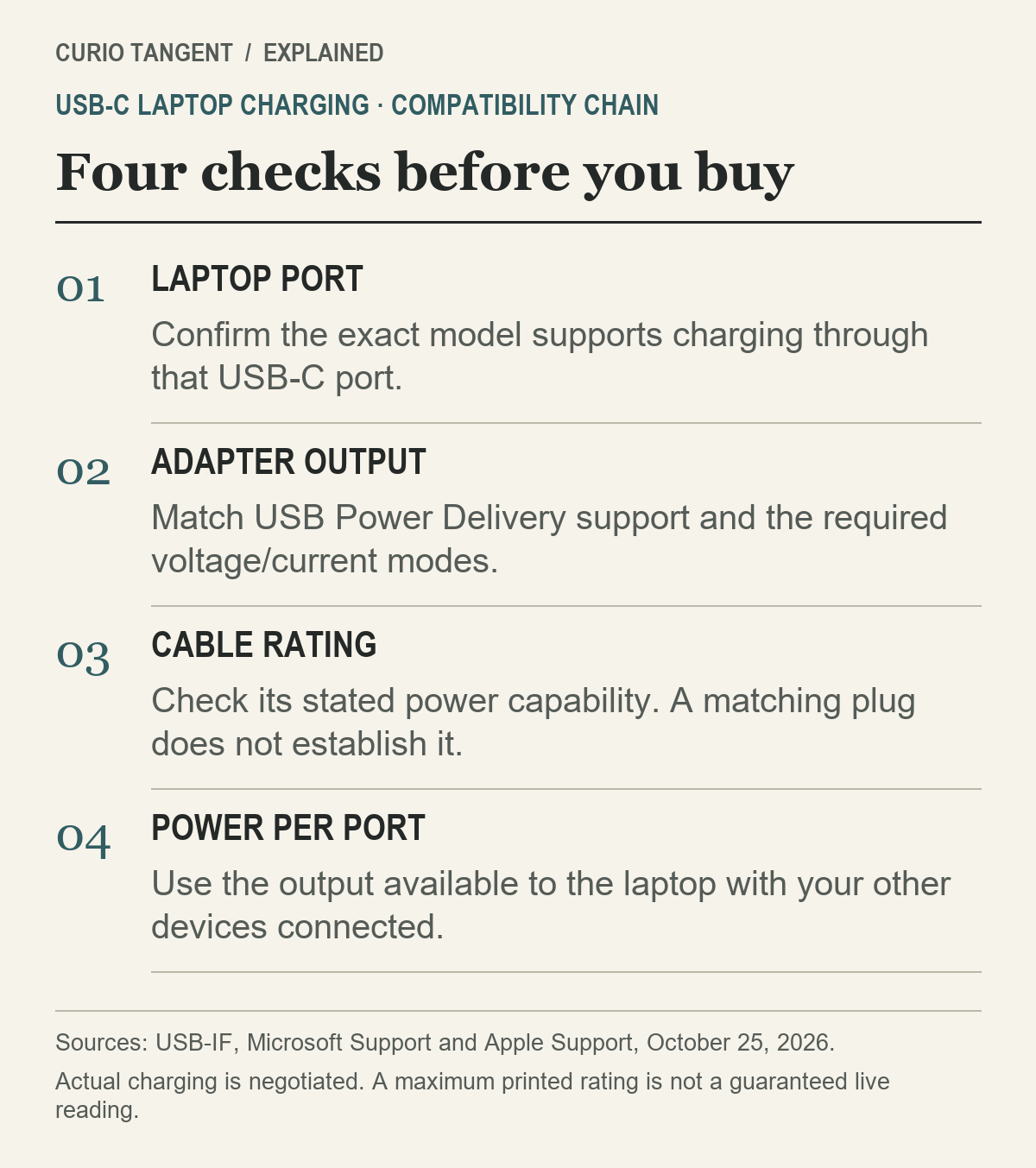
Four checks for USB-C laptop charging
| Check | What to look for | Why it matters |
|---|---|---|
| Laptop | Model-specific charging port and recommended power | A USB-C socket may have another purpose |
| Adapter | USB PD support and output voltage/current modes | The available mode must suit the laptop |
| Cable | Stated power rating from an identifiable supplier | Connector fit does not establish the rating |
| Shared output | Power available to the laptop’s port in your setup | A total adapter rating may not describe one port |
Start with the laptop manufacturer’s manual or support page. Record its recommended adapter wattage and which socket accepts power. Then compare the charger and cable against those requirements. A photograph of a connector cannot replace that model information.
1. Read the laptop requirement first
Microsoft’s USB-C troubleshooting guidance lists insufficient adapter power, an unsuitable cable and connection to the wrong port among possible causes of slow charging. A hub or dock can also be part of the problem.
For an initial check, use the manufacturer’s recommended adapter and cable, connected directly to the charging-capable port. If that works while a dock-based setup does not, compare the dock’s power delivery specification before replacing the laptop charger. Change one part of the arrangement at a time so the result tells you something useful.
On a work laptop, look up the exact model rather than a similar product name. Product families can include machines with different power needs. Keep the original adapter’s specification in your notes even if your aim is to carry one charger for several devices.
2. Check USB PD output, not just the largest number
USB Power Delivery lets compatible equipment negotiate power. USB-IF describes power levels up to 240 W in the extended system; that maximum does not mean an arbitrary USB-C laptop, cable or adapter can use it.
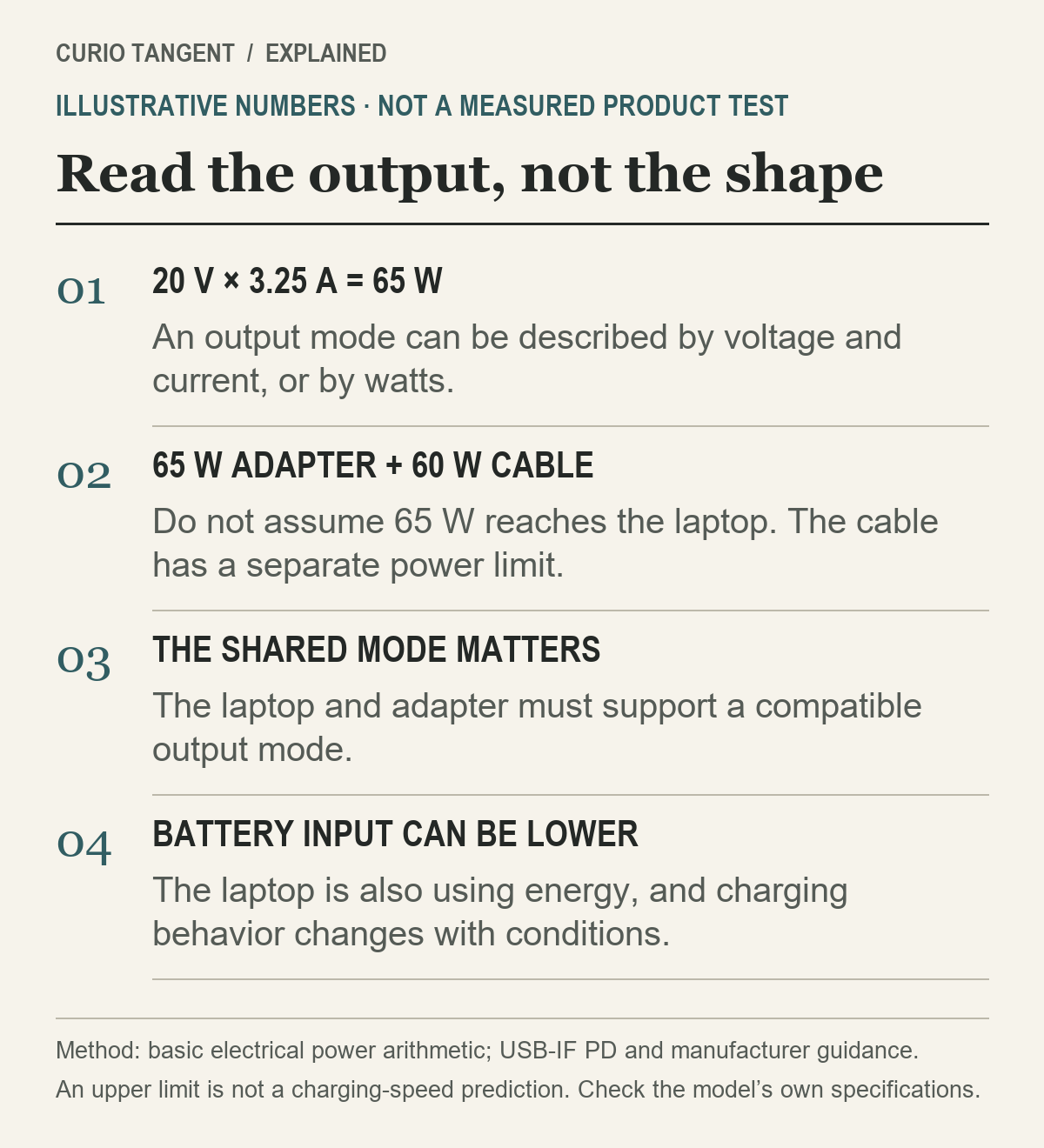
An adapter label may list several output modes. As a simple arithmetic example, 20 volts × 3.25 amps = 65 watts. A 65 W headline alone does not establish that every connected device receives that output. The laptop and adapter still need a compatible mode, and the laptop controls what it requests.
For a multiport adapter, read the manufacturer’s allocation table with the combination of devices you intend to connect. Compare the laptop port’s available output, rather than adding all the advertised ports together. Recheck the allocation if you add a phone or another device.
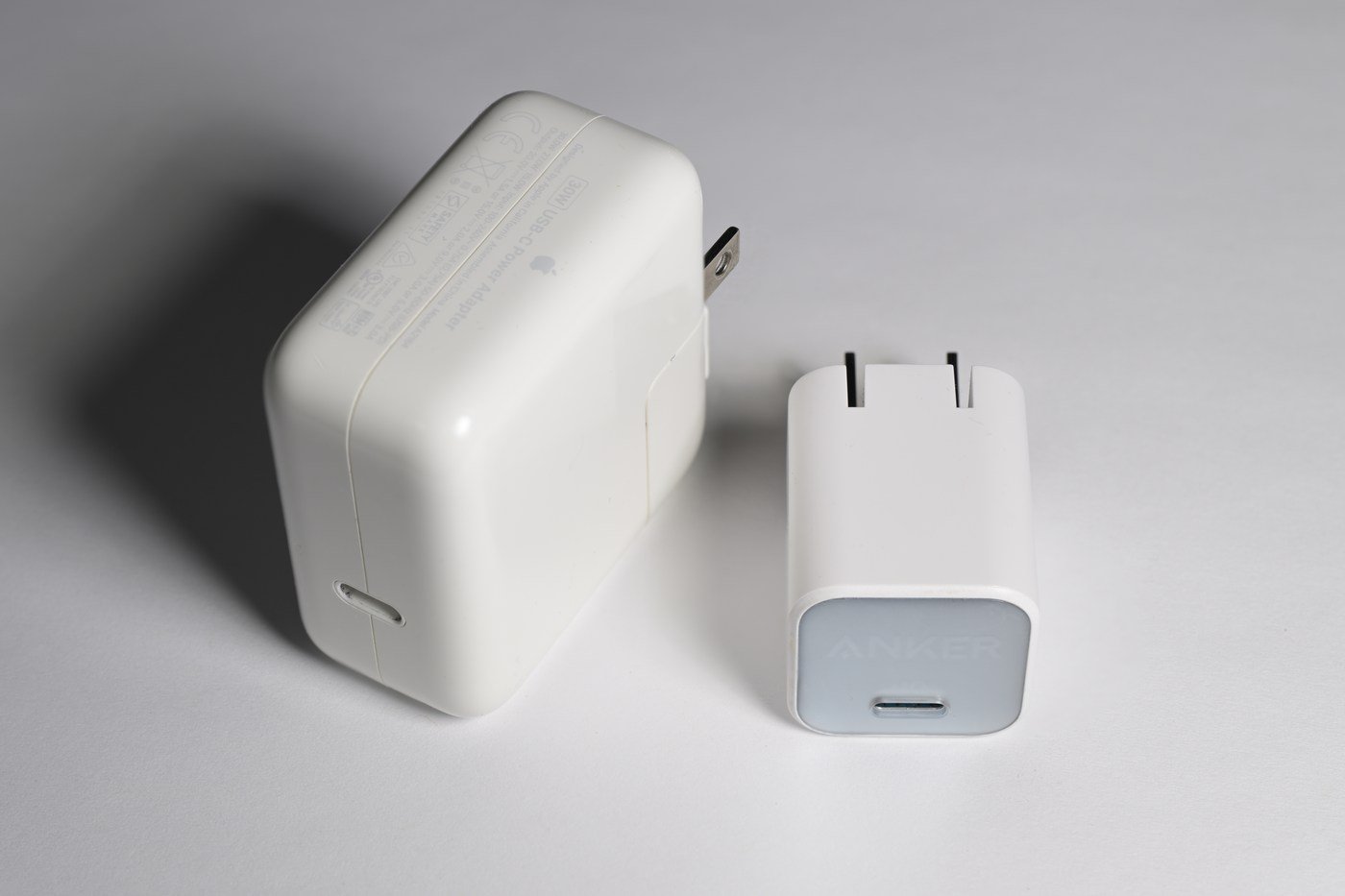
The two archive adapters pictured above are both identified as 30 W models by the photographer, despite their different sizes. The photograph makes a limited point: size alone is a poor power guide. It is not a recommendation to charge your particular laptop with either adapter, and we have not tested them.
3. Give the cable its own check
USB-IF’s cable guidance says cables have different capabilities. Its current USB-C-to-USB-C certification marking rules use 60 W or 240 W power labels; data capability is a separate consideration. A charging cable is not automatically the right cable for a fast external drive or monitor.
If your setup needs more than 60 W, a cable explicitly limited to 60 W cannot be assumed to deliver the full requirement. Conversely, a 240 W-rated cable cannot make a 30 W adapter supply more power. Each part has a role; a higher rating on one part does not upgrade the others.
An older cable marked 100 W is not automatically unusable because current certification markings differ. Check its documented capability against the equipment you own. If the cable has no reliable specification, do not invent a rating from thickness, color or how expensive it looks.
4. Separate adapter capacity from live charging
The number printed on an adapter is not a live battery-input measurement. A laptop also consumes energy while it is running, and its charging behavior can change with the battery’s state and operating conditions. A suitable adapter does not imply the battery continuously receives its maximum rated watts.
For Macs that charge by USB-C, Apple’s adapter guide says to use USB PD and recommends at least the model’s specified adapter wattage for the best experience. It also explains where to view connected-adapter power in System Information: choose Power, then look for AC Charger Information. That reading is useful context, not a laboratory battery-charging test.
If charging remains slow with the recommended equipment, use the manufacturer’s troubleshooting route. Visible damage or abnormal heat calls for stopping use and seeking the supplier’s guidance, rather than opening the adapter or experimenting with unsupported combinations.
What the EU common-charger rule changes
The European Commission says common-charger requirements have applied to laptops in scope since April 28, 2026. They bring USB-C and charging information into the covered market. They do not turn every existing laptop into a USB-C charging device or erase the need to match power requirements.
For a buying decision, keep a short specification note: laptop model, charging port, recommended power, adapter output modes and cable rating. Take that note to the product page. It is more useful than searching for the highest wattage without knowing what your machine can accept.
If you are improving the rest of your Windows setup, our PowerToys 0.102 guide explains five documented software changes to consider next.
Sources and method
Checked October 25, 2026. Technical claims use USB-IF, Microsoft and Apple guidance; EU timing uses the European Commission. Arithmetic and the checking sequence are Curio Tangent explanations. The photographs are archival examples, not evidence of a charging test. Prepared with AI assistance and checked against the linked sources. No products were purchased, benchmarked or affiliate-ranked for this article.