Guides / Personal Google Accounts · Storage guide
Gmail Storage Full? 5 Checks Before You Delete More Email
A Gmail storage full warning does not necessarily mean your inbox is the main problem. The allowance is shared with other Google services, and messages in Trash still count. Start by finding which service is using the space, then review a small number of large items before deleting more.
This guide covers personal Google Accounts. Google’s storage explanation describes an allowance of up to 15 GB shared across Gmail, Drive and Photos, with account-specific additions possible. A workplace or school account may have different storage arrangements set by its organization.
1. Check the shared allowance first
Open your account’s storage breakdown and identify the largest category. Google’s storage management help provides a route to review suggested items or clean up by service. Confirm the account before deciding what to remove, especially if your browser contains several signed-in profiles.
If Photos occupies most of the allowance, deleting hundreds of small emails may do little for the total. If Gmail is the large category, target attachments and retained deleted messages. The useful starting measure is space by service, not how untidy the inbox looks.
| What you find | Where to investigate |
|---|---|
| Gmail uses most space | Large messages, attachments, Spam and Trash |
| Drive uses most space | Owned large files and Drive Trash |
| Photos uses most space | Large backed-up items and whether they count toward the allowance |
| The computer has free space | Check the cloud account separately; these are different limits |
2. Find large Gmail messages without deleting the search results
On a computer, try these searches in Gmail’s search bar. Google documents search operators for size, attachments, age and location, and lets you combine them.
| Search | What to review |
|---|---|
has:attachment larger:10M | Large messages that include attachments |
older_than:2y has:attachment | Older messages with attachments |
filename:pdf larger:5M | Large messages containing PDF attachments |
in:anywhere larger:10M | Large messages including those in Spam and Trash |
The size condition describes the message-size search; it is not a promise that a single attachment has exactly that size. Age is also only a filter. A two-year-old receipt, contract or family message may still matter.
Open the candidate messages and check what you need to keep. If a result is part of a conversation, inspect the selection before removing the whole thread. Search first, decide second, delete last. These queries are a shortlist, not a bulk-deletion instruction.
3. Understand archive, Trash and permanent deletion
Archiving removes a message from the inbox view while keeping it available in All Mail. It organizes the inbox; it does not remove the stored message from the account. Moving everything to Archive is therefore not a storage cleanup.
Google’s deletion guide says deleted messages go to Trash and can normally be recovered there for up to 30 days. Permanently deleting them ends that ordinary recovery option. A deleted draft is a separate case: it cannot be recovered from Trash.
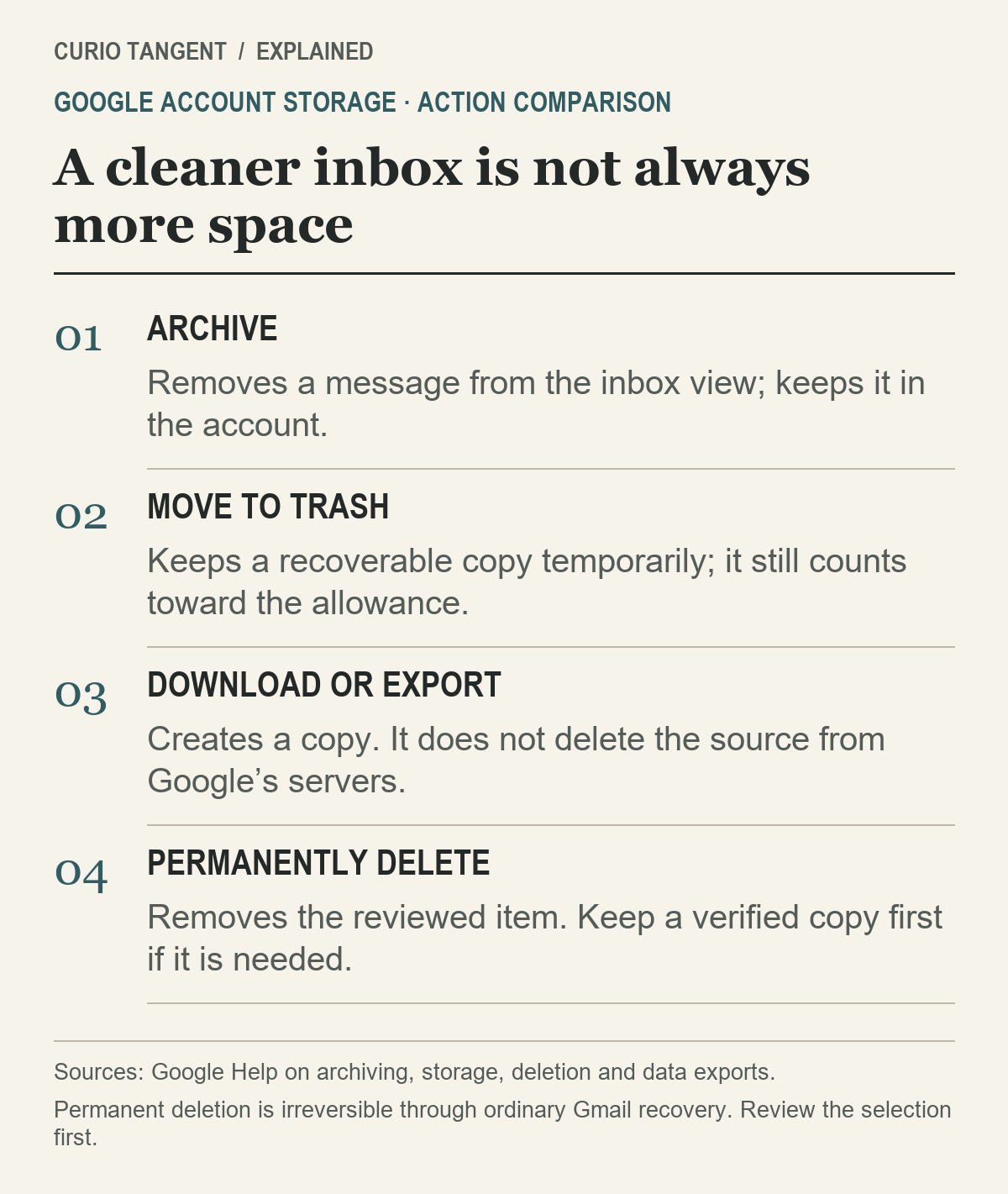
Before emptying a folder, review its contents. If only one large item is expendable, removing that reviewed item is a more precise decision than permanently clearing a whole folder you have not checked. Gmail’s storage accounting includes Spam and Trash, so moving a message there is different from freeing its space.
Keep a usable copy before removing something important
Google provides data export instructions through Google Takeout. Downloading data creates a copy; Google explicitly says it does not delete the source from its servers.
Check that an export has finished, that you can open it with an appropriate tool and that any needed attachments are present before relying on it as your retained copy. Protect the copy if it contains private correspondence. An external drive is one possible place to store a backup; it does not increase the Google Account’s cloud allowance.
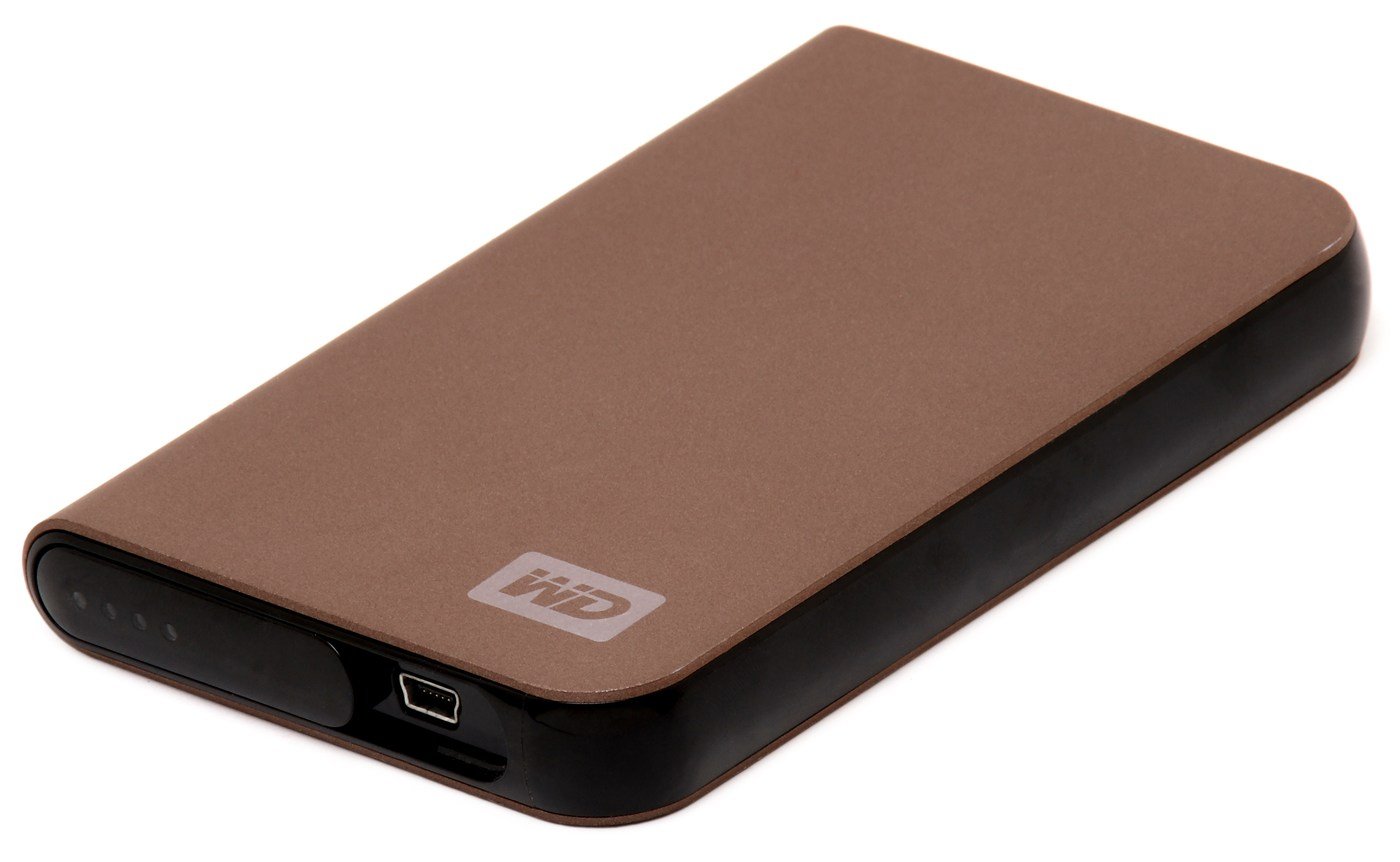
Saving an email attachment into the same Google Drive account also should not be assumed to free the shared allowance. You may simply move or add data within the same pool. Compare the account breakdown afterward instead of treating the download or copy action as proof of a reduction.
4. Check whether the Photos items counted at all
Google says certain photos backed up in High quality, now called Storage saver, before June 1, 2021 did not count toward account storage. Deleting those excluded items does not recover counted space. That exception does not apply to every old photograph: Original quality backups are treated differently.
This can explain a disappointing cleanup. Removing many old photos feels substantial, yet the meter may hardly move if the selected items were outside the allowance. Check the backup category and the service’s storage information before deleting more memories.
5. Give a large cleanup time to appear
Google’s storage troubleshooting page warns that accounting after a large deletion can take up to 48–72 hours to update accurately. That is a published allowance, not a speed we measured.
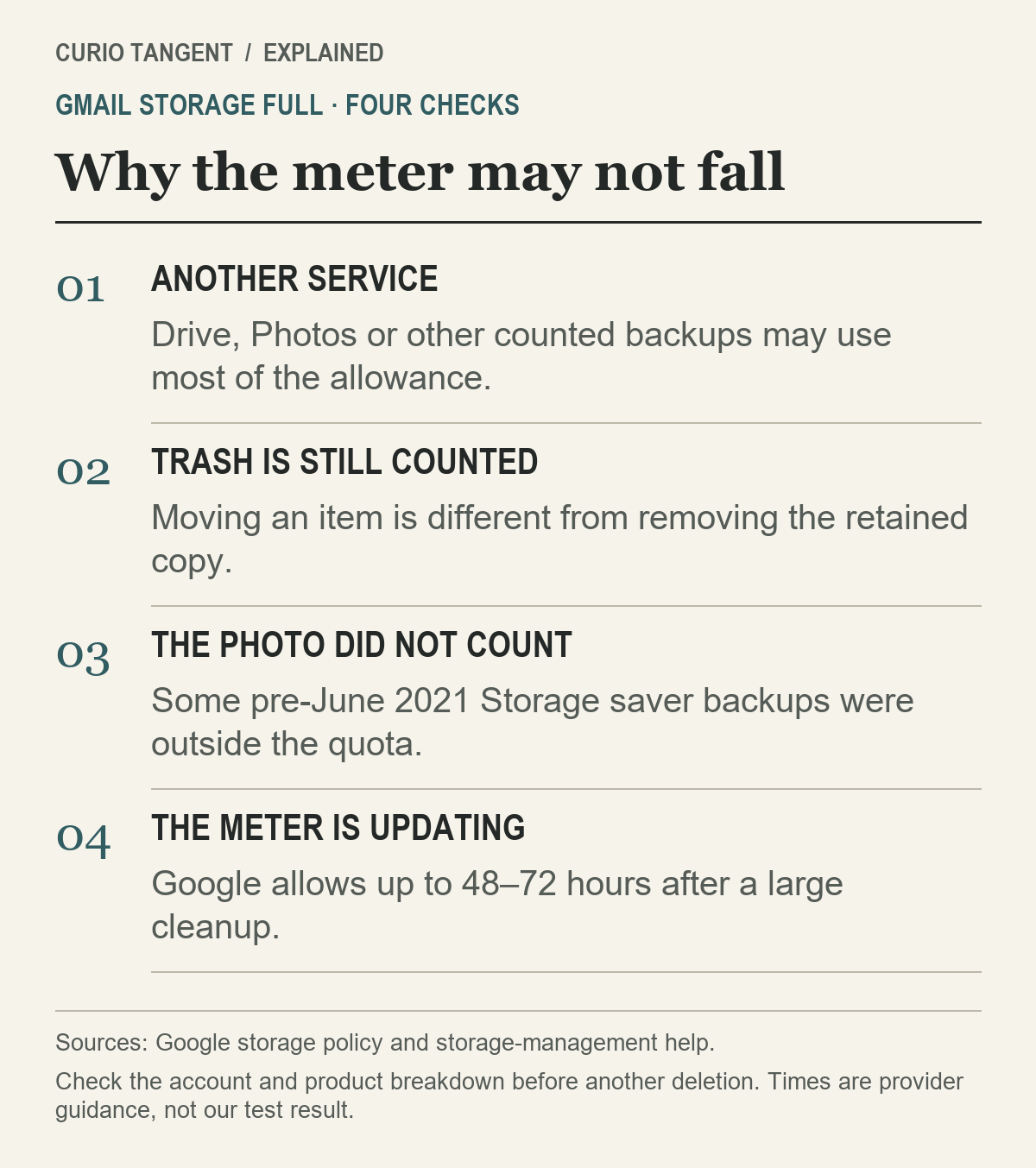
Record the account, items removed and approximate cleanup time. Recheck the same account’s storage breakdown after it has had time to update. Repeatedly deleting unrelated files because the meter has not yet changed can lose useful material without answering the original question.
When the account is full, Google says Gmail can stop sending and receiving mail, and incoming messages may return to the sender. Once the account is working again, contact anyone whose important message may have bounced and ask them to resend it. Do not assume a previously rejected message will automatically arrive later.
If the warning persists after the documented update period, revisit the product breakdown and use Google’s support route. Buying additional storage is another available option, but first establish whether ongoing needs or a removable backlog caused the problem.
Storage cleanup is separate from AI access settings. Our Gmail and Photos privacy guide explains those controls. For the bigger policy context, see our Google privacy update explainer.
Sources and method
Checked October 25, 2026, against the linked Google Help pages. The checking sequence is Curio Tangent’s editorial guidance; no reader’s account was accessed or cleaned. Archive photographs illustrate desktop work and local backup equipment. Prepared with AI assistance and source verification. No deletion, storage recovery amount or update speed was tested on a live customer account.