News & Trends / Windows · October 21 release
PowerToys 0.102: 5 Useful Changes to Try First
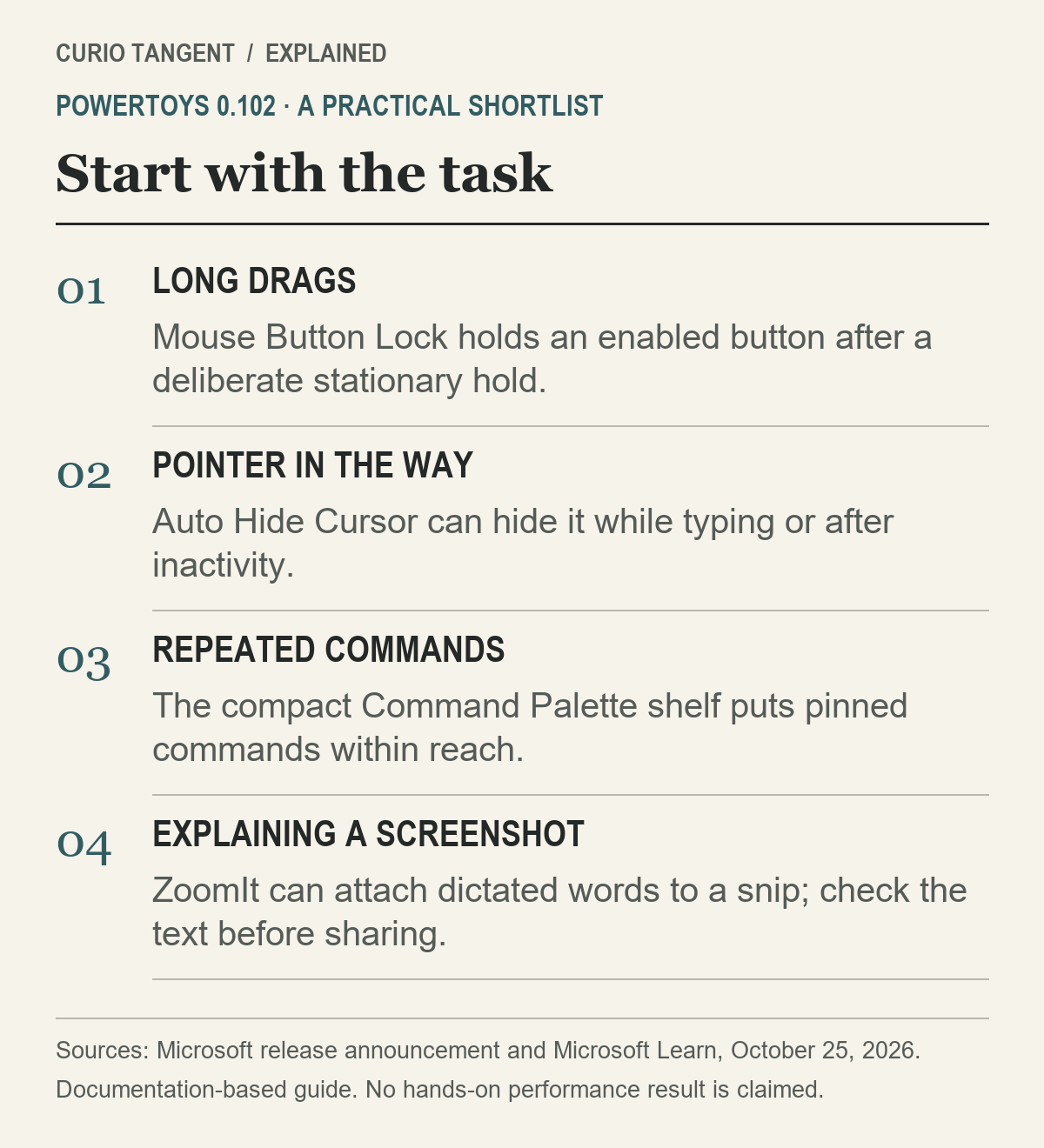
PowerToys 0.102, released on October 21, gives Windows users new ways to handle mouse drags, hide a distracting pointer and reach repeated commands. The sensible starting point is the task you want to fix, rather than switching on every utility at once.
Microsoft’s stable release page identifies the build as v0.102.2933.0. An earlier preview has a different build number, so check the stable release when comparing download instructions. This article explains the published features; we have not benchmarked or tested the build on a local PC.
PowerToys 0.102: choose the useful change first
| Your recurring task | Start here | Check before relying on it |
|---|---|---|
| Long mouse drags or selections | Mouse Button Lock | The buttons enabled for locking |
| Typing with the pointer covering text | Auto Hide Cursor | Whether the app draws its own cursor |
| Launching the same commands | Command Palette shelf | Which visible position contains the command |
| Explaining a captured screen region | ZoomIt snip with dictation | The resulting transcript and screenshot |
| Giving a key a second role | Keyboard Manager tap-alone remap | Its behavior alone and in shortcuts |
The table is an editorial starting order, not a ranking from a speed test. Someone who rarely drags files may get more use from the shelf than from a mouse feature. A trainer explaining screen captures has a different reason to update.
1. Mouse Button Lock: release your finger, keep the drag
With Mouse Button Lock enabled, hold an eligible mouse button without moving, release it, then move the pointer to drag or select. Pressing a mouse button ends the lock. Microsoft’s mouse utilities guide says the utility is off initially; its default button configuration selects the right button, since Windows already has ClickLock for the left button.
Check that configuration before expecting a left-button drag to work. A deliberate stationary hold triggers the lock; moving too far during the hold becomes a normal drag instead. That distinction matters when trying it for the first time. Use a disposable selection or file in a suitable test folder before applying a new gesture to work you care about.
Microsoft also documents limits around games using raw input and elevated windows. This is a targeted interaction change, not a promise to replace every drag operation in every application.
2. Auto Hide Cursor: remove the pointer while typing
The new cursor-hiding utility can respond to keyboard input, pointer inactivity or both. The current documentation calls it Auto Hide Cursor; the release announcement describes the addition as Cursor Hide. Moving the pointer brings it back, but apps that draw their own software cursor may behave differently.
For writing, try the typing option first and see whether it addresses the distraction. If you also choose inactivity hiding, check its delay separately. Changing one behavior at a time makes it easier to identify the setting that helped—or the one to turn back off.
3. The Command Palette shelf makes positions matter
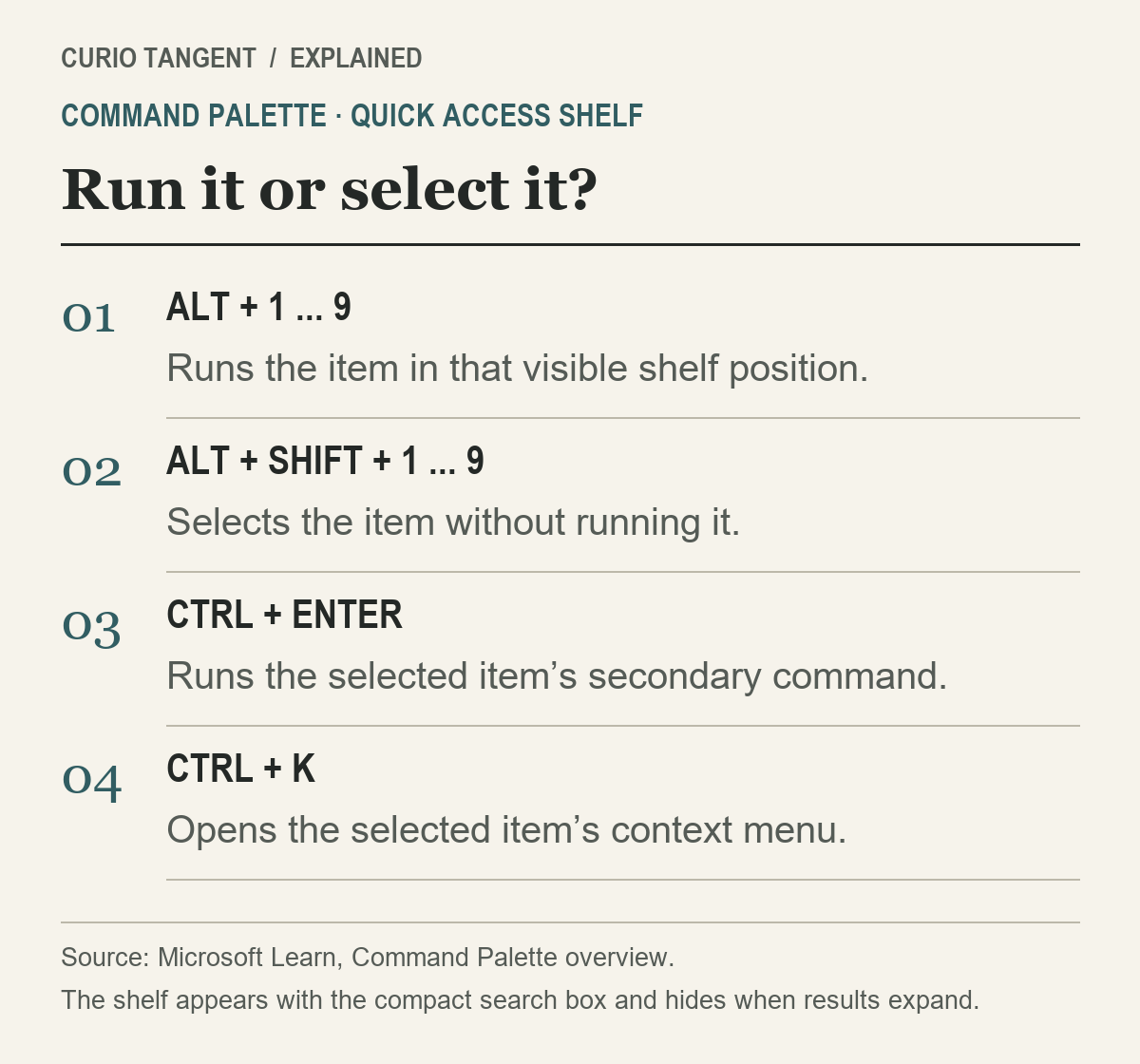
The quick access shelf places pinned commands beneath the compact search box, with recent items available if enabled. It hides when the palette expands into results. You can right-click the search box and choose Show shelf, or use the corresponding settings.
Alt + 1 through Alt + 9 runs a shelf item. Alt + Shift + the number selects it without running it. That is worth learning before putting commands with different consequences next to one another. Dragging pinned items changes their order, so a remembered number should be checked after rearranging the shelf.
Start with a few familiar commands whose names and effects you recognize. A short, stable arrangement is easier to learn than a crowded shelf you reorganize every day. Keep selection and execution distinct when showing a colleague how it works.

4. ZoomIt can pair a snip with dictated text
Microsoft’s October release announcement introduces Snip with dictation. Enable it in ZoomIt, then press Space while dragging a snip region to dictate an explanation. Microsoft says transcription happens on the device and the resulting image and text can be pasted together.
That could be useful for a bug report: capture the affected control and explain what you expected it to do. Read the transcription before sending it, particularly names, numbers and technical terms. Review the image too; a correct transcript does not remove unrelated information captured in the screen region. No transcription accuracy result is assumed here.
5. Tap-alone remaps give a key another job
Keyboard Manager’s new tap-alone remaps distinguish a key pressed on its own from the same key used in a combination. The update also adds search and filters to help manage larger remapping lists, according to Microsoft’s announcement.
A useful trial is one key and one familiar action. Check the key by itself, then try your usual shortcuts involving it. Keep a note of the original mapping so you can reverse the experiment. Adding several remaps in one sitting makes an unexpected shortcut harder to trace.
How to update and keep the experiment manageable
Microsoft’s installation guide points readers to its GitHub releases and the Microsoft Store. Existing users can check for updates in PowerToys Settings. The published minimum is Windows 10 version 2004 or newer, or Windows 11, with a 64-bit x64 or ARM64 processor.
Record the installed version, enable one relevant utility and check it inside the application you actually use. Keep an effective existing shortcut until its replacement proves comfortable. If your PC is managed by an employer, follow its software rules rather than treating a public download link as workplace approval.
For another practical Windows-adjacent hardware problem, see our USB-C laptop charging guide. For AI-assisted explanations, our fact-checking checklist helps separate documentation from an unverified answer.
Sources and method
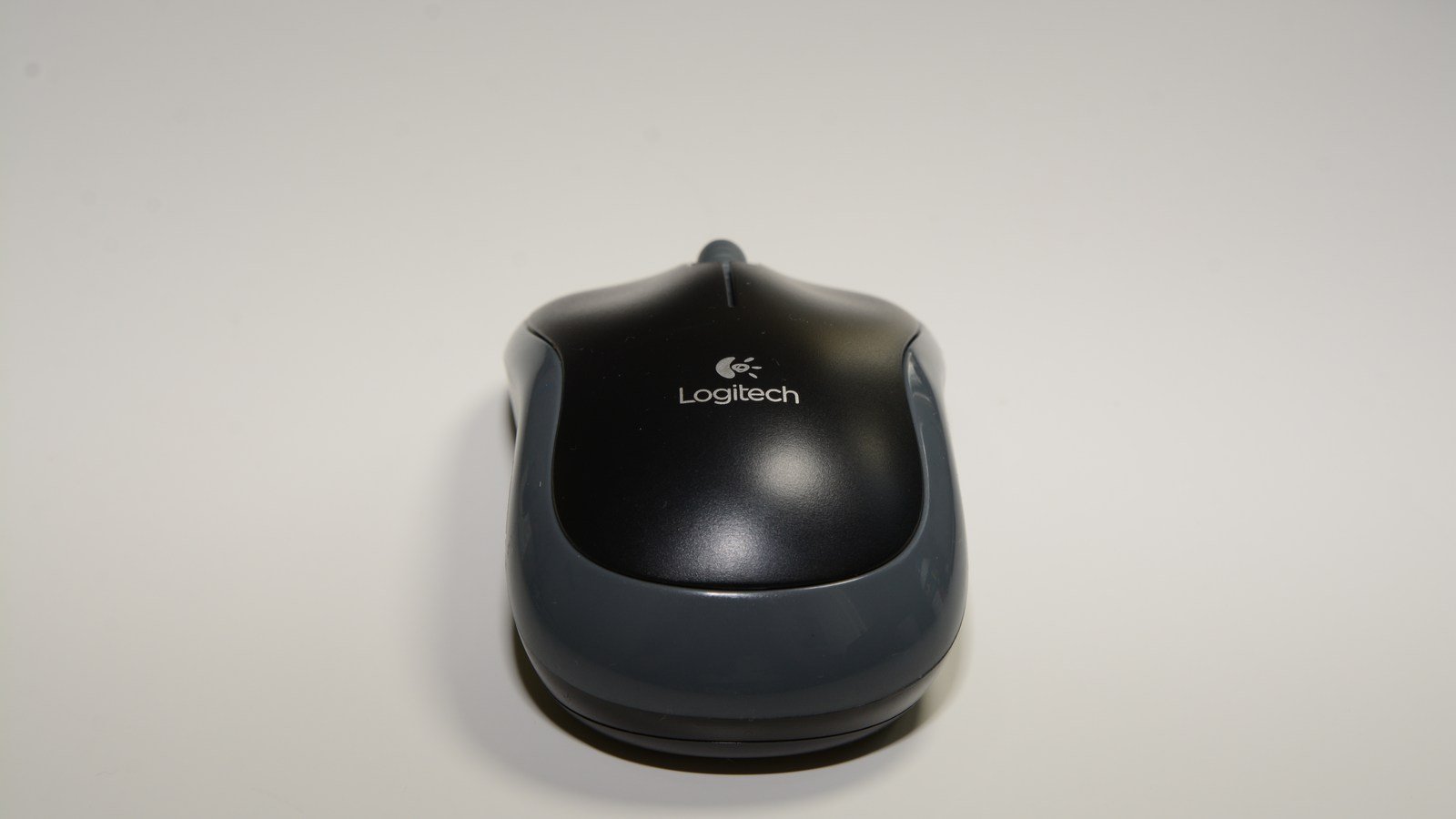
Checked October 25, 2026. Feature claims come from Microsoft’s release announcement, stable GitHub release and the linked Microsoft Learn pages. Suggested trial order and examples are Curio Tangent’s editorial guidance. Archive photographs illustrate input hardware; they are not screenshots of this release. Prepared with AI assistance and checked against the cited sources; no independent hands-on review or productivity measurement is claimed.