Guides / Personal Google Accounts · Privacy controls
How to Disconnect Gmail and Photos from Google AI
To disconnect Gmail and Photos from Google AI, check the service receiving the data: Gemini and Google Search services have separate connection settings. Then review advertising and saved history separately. Disconnecting a source does not automatically erase information already saved in an AI interaction.
This guide is for a personal Google Account on a computer. The routes below follow Google’s current public help, checked October 24, 2026. Settings are rolling out in stages, so labels and eligibility can differ. The illustrations are original navigation maps, not screenshots of a reader’s account.
Before you disconnect Gmail: identify the connection
A Gmail address can be involved in several different relationships. You might use it to sign in to an app, authorize an app to read account data, or connect Google Workspace to another Google product. Those are different permissions.
Google’s linked-app guide separates sign-in links from other connections. If your concern is a developer outside Google, use the third-party access guide. Removing a third-party permission does not describe the controls for Google’s own Personal Intelligence features.
Start by checking the profile icon and account address in the product you are using. A change in one signed-in account says nothing about another. Avoid granting a new connection merely to make your menu resemble an example.
Check 1: turn off the Gemini connection
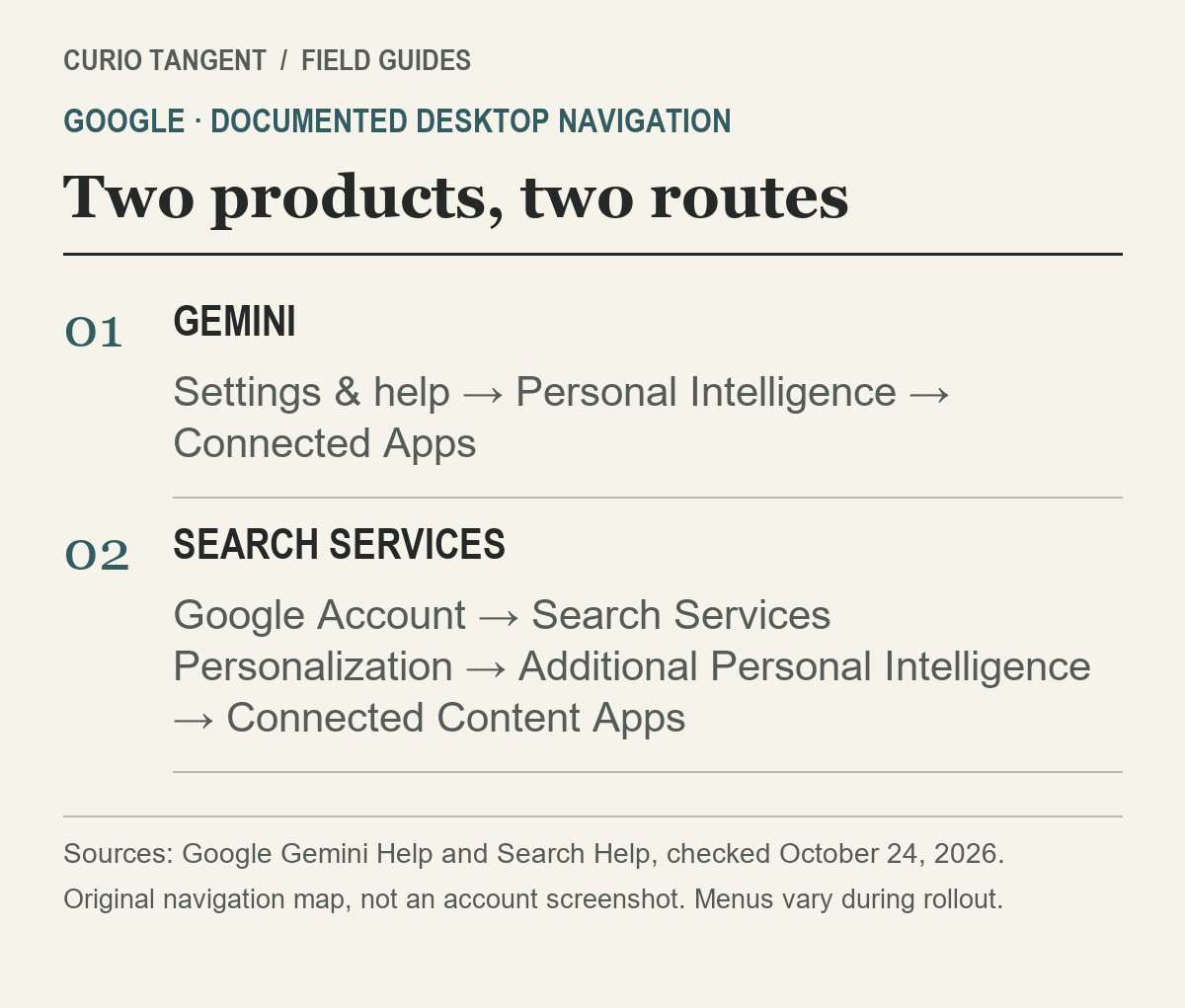
For Gemini, follow Google’s desktop Connected Apps instructions:
- Open gemini.google.com in the account you want to review.
- Open Settings & help → Personal Intelligence → Connected Apps.
- Turn off Google Workspace for the connected Workspace content, including Gmail. Turn off Google Photos separately if it appears and is connected.
- Complete the product’s on-screen instructions, then revisit the list to check the resulting state.
Do not assume there is always a Gmail-only switch. The permission may be grouped under Workspace. Google says Personal Intelligence is gradually available and is not offered for work, school or supervised accounts in this consumer flow. The current guide also excludes the UK, EEA, Switzerland and Nigeria from this particular Gemini feature. A missing menu is not proof of a hidden connection.
According to Google’s Connected Apps explanation, changing these connections does not change every personalization choice. Memory of past chats and other services’ settings are separate. A response that still refers to old chat context is not, by itself, proof that the disconnected inbox was read again.
Check 2: review Search services separately
Search services have their own connected-content settings. Google’s current documented path is Google Account → Search Services Personalization → Additional Personal Intelligence → Connected Content Apps. Review the connected Workspace and Photos entries there, and use the connection controls offered for your account to disconnect the source you no longer want to supply.
Google explicitly warns that Search settings are being updated. Follow the live help link if this route does not match your screen. Do not enable Personalized Recommendations, smart features or a new connection just to find a disconnect action.
This Search permission can cover multiple Search services; it is not the same permission list as Gemini’s. That is why stopping after the Gemini screen can leave a different connection unreviewed. Google also says disconnecting a content app does not delete its data from Search Services History.
Check 3: choose how ads are personalized
If the goal is to stop account-based personalized ads on Google, review My Ad Center. Open the personalized-ads control, choose the setting you want and follow the confirmation shown for your account. Turning personalization off changes ad selection; it does not remove advertising.
For a narrower choice, Google’s activity-for-ads guidance describes Manage Privacy → Activity used to personalize ads. Controls there include activity on sites and apps and YouTube History. Google says turning an activity source off for ads does not necessarily stop saving it or using it for recommendations. Read the outcome on the specific confirmation screen.
| Your intended outcome | Control to inspect |
|---|---|
| Stop a source feeding Gemini | Gemini Connected Apps |
| Stop a source feeding Search services | Search Connected Content Apps |
| Stop account-based ad personalization | My Ad Center |
| Remove previously saved interactions | The relevant product’s activity history |

Check 4: decide what saved activity to keep
For Gemini history, Google’s activity instructions point to Settings & help → Activity, or myactivity.google.com/product/gemini. Review the entries and the available deletion range before confirming. Turning off Keep Activity and deleting older activity are separate decisions. Work or school retention can be controlled by an administrator.
For Search, follow the Search Services History guide. In My Google Activity, review Search Services History, its stored entries and its retention choice. Google distinguishes turning future history off from turning it off and deleting selected activity. Accounts still using the older controls may show Web & App Activity instead.
Deletion deserves a deliberate scope check. Confirm the account, product and date range; export anything you need to keep first. This is not an instruction to delete the original email or photograph to clean an AI history entry. Nor does deleting one product’s history prove that every other product’s record is gone.
After making your chosen changes, reopen each relevant settings list and note the state and date. Our Google privacy-policy explainer covers the advertising-policy context; this guide covers the separate controls you can inspect.
Sources and method
Instructions and limitations are attributed to the linked Google Help pages, checked October 24, 2026. We did not access a reader’s account, change permissions, delete data or audit Google’s systems. Prepared with AI assistance; navigation maps were drawn from public documentation and are not captured account screens.